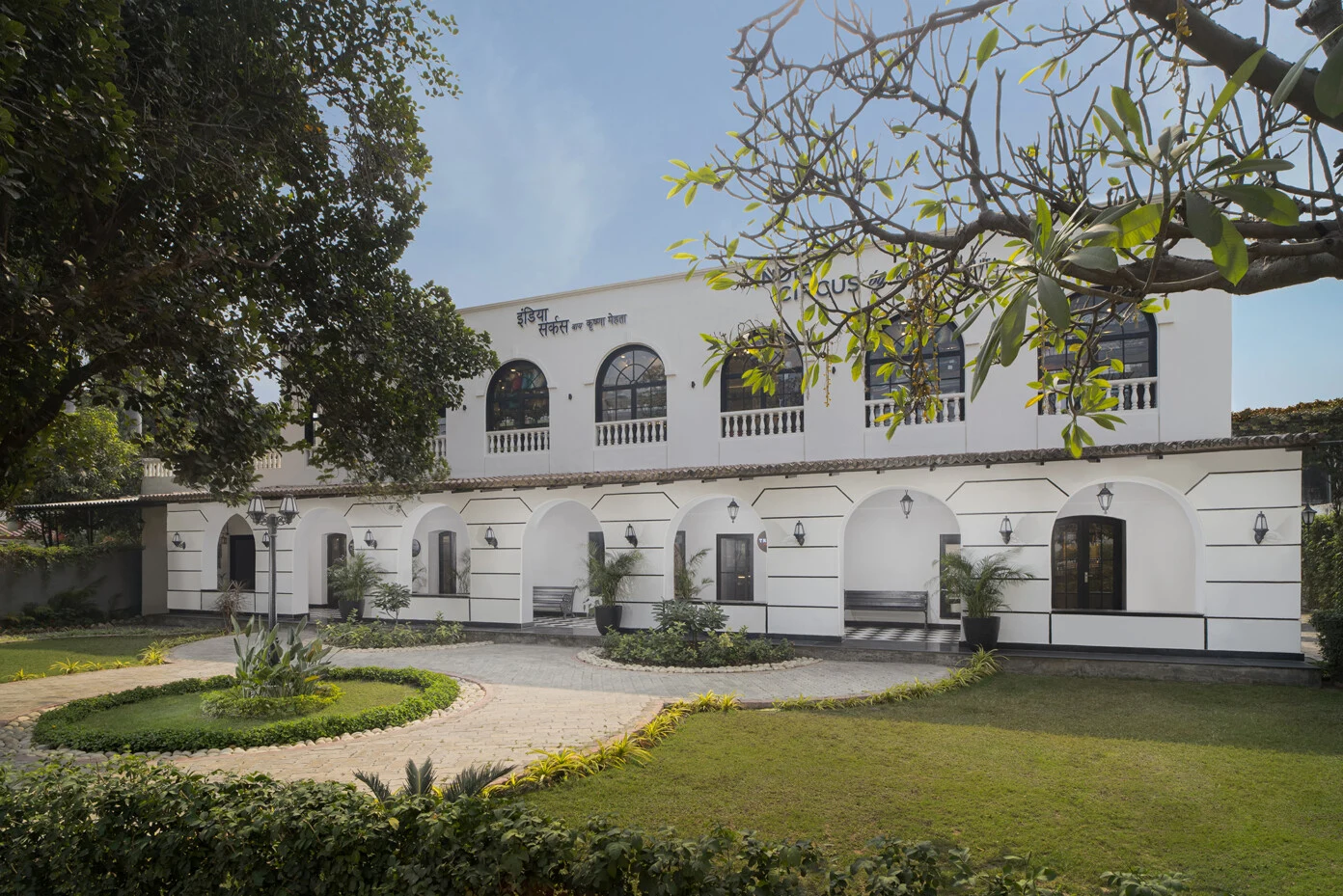
Big barn entrance · Banyan tree
A reading room beneath the leaves
Open 3D / AR ↗Letter game ↗ NEWAL KISHORE PRESSEST. 1858 · VIRTUAL MUSEUM AT LE PRESS
LUCKNOW · 26.85075° N, 80.94464° E
Find the Press on the map. Step into its stories. Discover six encounters where architecture, craft and memory meet.
01 / THE CAMPUS IN CONTEXT
Free map · no account needed
Drag to explore; right-drag to tilt.
A marks your supplied entrance pin, B the chimney courtyard C the fountain centre and D the left end of the verandah. D is a reference pin awaiting an exact model-endpoint match. Start overhead, reduce opacity or hide the model to compare with OpenStreetMap. The map is a reference, not a measured building survey.
Load the map to check all three control points.
The chimney stays fixed. Adjust only after comparing a known building corner or fountain. These controls do not change the published alignment or QR trail.
Default: chimney fixed, with scale and direction fitted to your entrance and fountain pins. Remaining mismatch is about 2 metres; physical AR alignment still needs an on-site check.
Loads the architectural model and OpenStreetMap tiles on request. Your location is optional.
Aligned using the owner-supplied chimney, entrance and fountain coordinates. This three-landmark fit is approximate, not a measured survey. Map pins do not automatically anchor objects in your camera view.
02 / SIX PLACES, SIX STORIES
Use your printed campus QR signs, or choose an encounter here. The same stops connect the letter game and AR experience.
A reading room beneath the leaves
Open 3D / AR ↗Letter game ↗Pages beneath the bougainvillea
Open 3D / AR ↗Letter game ↗A walk with Munshiji
Open 3D / AR ↗Letter game ↗From metal to meaning
Open 3D / AR ↗Letter game ↗The press, seen as a whole
Open 3D / AR ↗Letter game ↗A community of printed stories
Open 3D / AR ↗Letter game ↗03 / IMMERSIVE CAMPUS LAB
Explore a tabletop model in phone-camera AR, or view it in a supported VR headset. Camera AR uses a floor you choose during this session; it is not a building-sized overlay locked to the site.
AT LE PRESS NOW? START HERE · FREE · NO QR REQUIRED
iPhone? Choose one of the six individual exhibits in Safari and tap its AR button to use Quick Look. The whole-campus camera mode requires a compatible WebXR browser.
Update your browser. On Android, install or update Google Play Services for AR from Google Play if prompted. If you previously blocked the camera, allow it for lepress.in in your browser’s site permissions and reload. A phone without supported AR can still explore the 3D model.
Location permission is optional and does not enable the camera. GPS does not automatically align this model to the buildings.
Loads only when requested. Desktop 3D works without a headset. AR / VR availability depends on your device and browser.
In AR: slowly scan an open floor, wait for the ring, then tap to place a miniature campus. Keep your surroundings clear. On iPhone, use the six individual scenes and their “View in your space” option. VR opens a seated tabletop view; use your headset’s exit control to return.
FREE PHONE VIEWERS
New: step-by-step AR & VR guide for Android, iPhone, iPad, Meta Quest, Apple Vision Pro and Galaxy XR, with a one-tap check of your device. Headset owners can enter the VR artefact gallery.
Scan a code with your phone camera, or tap its link on this phone. Open Le Press in Safari on iPhone or Chrome on Android, choose an exhibit, then tap its AR / “View in your space” button.
Install or update Google Play Services for AR on a supported phone. This is Google’s AR system service, not a standalone museum app. Keep the Google app and Chrome updated.
 Free Android AR service ↗Open Le Press AR exhibits ↗
AR Quick Look is built in. No separate viewer download is needed. Open an exhibit in Safari and tap its AR button. From Instagram or WhatsApp, use “Open in Safari”.
 Open free iPhone AR exhibits ↗About Apple AR Quick Look ↗
All six exhibits offer browser-based 3D viewing. If your phone does not support camera AR, you can still rotate and explore them. No Le Press account or payment is required.
 Download spatial data ↓Choose an encounter ↗
Allow camera access when starting AR. Slowly scan a well-lit, clear floor. Device support varies. Android requirements · Supported Android devices
SPATIAL DATA / PUBLIC ACCESS
Download the architectural campus and seven exhibit models as GLB files, with separate geographic alignment and checkpoint data. Downloads are assembled on your device from the existing published model assets.
GLB · 20.3 MB
GLB · 165 KB
GLB · 323 KB
GLB · 37 KB
GLB · 50 KB
GLB · 33 KB
GLB · 785 KB
GLB · 47 KB
Choose a model to download. Larger files may take a moment to prepare.
Import GLB into a compatible 3D viewer or authoring tool. For the campus, apply the companion alignment record to its local model coordinates. Geographic coordinates use WGS84. Survey accuracy and elevation are unknown.
The campus download contains the architecture. The full working museum also adds machinery and figures in application code; those additions are not all baked into the campus GLB. The seven separate downloads contain their own exhibit scenes.
These are GLB files, not Apple USDZ files. Use the existing iPhone exhibit pages for Quick Look. Animation and materials may render differently across viewers.
Personal exploration and evaluation. For redistribution or commercial use, contact info@lepress.in. Media rights and reconstruction notes. Publishing spatial data does not create persistent AR anchors or list Le Press on third-party metaverse platforms.
04 / HELP US SEE THE DETAILS
Camera-only Ray-Ban Meta glasses are a reference camera. They do not project this museum into your view or provide a survey-grade 3D scan.
Capture each courtyard, corridor and arch in diffuse daylight. Use short, steady passes with generous overlap. Stop for detailed still photographs of windows, capitals, cornices and printing equipment.
Export original photos and video through the Meta AI app. Avoid WhatsApp compression, filters and digital zoom. Add phone photographs from lower and higher viewpoints so the model is not limited to eye level.
Record arch widths and heights, distances between columns and the size of each courtyard using a tape or laser measure. Mark at least three non-collinear reference points; use additional points to check the fit.
Capture during quiet hours, keep the recording indicator visible and avoid identifiable visitors without permission. The footage can stay on your computer for selection, modelling and review.
A measured model-to-site alignment, stable visual reference targets or a supported visual-positioning service, plus tests at the six real stops. Ordinary phone GPS and a link encoded in a QR sign cannot by themselves align an arch with its real wall. Existing QR links will remain the entry points; any visual calibration targets can be added beside them.
The current release provides a geographic model, six scene launch points and session-based camera placement. Persistent site anchoring is a further on-site calibration stage.
Owner-supplied entrance and courtyard control points, model scale and orientation, and the six approximate stops. Elevation and survey accuracy are unknown.
Alignment JSON ↓ · Six stops GeoJSON ↓Technical references: Ray-Ban Meta support · Phone AR support · Geospatial AR
Move your phone slowly over the ground. Tap when the green ring appears.
Miniature campus · manual placement · keep walkways clear